 Make us preferred on Google
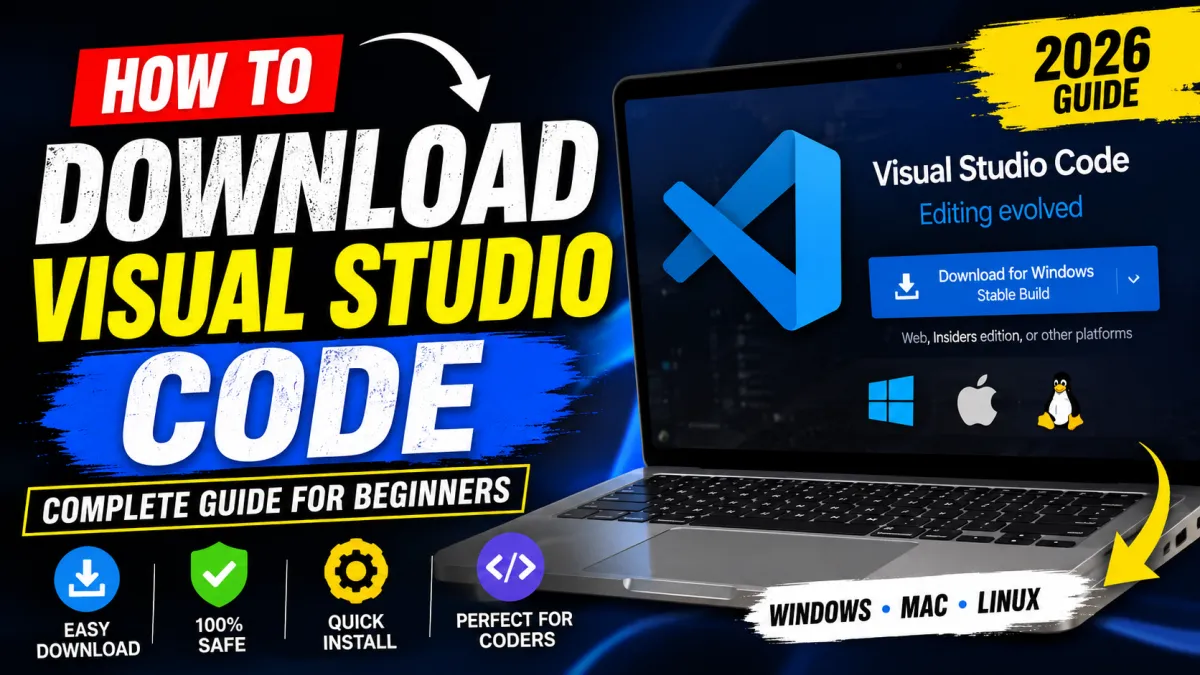
Visual Studio Code (VS Code) is one of the world's most popular free code editors developed by Microsoft. Whether you're learning HTML, CSS, JavaScript, Python, PHP, Java, C++, or any other programming language, VS Code provides a fast, lightweight, and powerful development environment.
If you're new to programming or web development, downloading and installing Visual Studio Code is one of the first steps toward building websites, mobile apps, desktop applications, and software projects.
This guide explains how to safely download Visual Studio Code, install it on different operating systems, and configure it for your first coding project.
What is Visual Studio Code?
Visual Studio Code (VS Code) is a free source-code editor created by Microsoft. It supports hundreds of programming languages through built-in features and extensions.
- Free to use
- Open-source technology
- Cross-platform
- Lightweight and fast
- Integrated terminal
- Git and GitHub support
- Syntax highlighting
- Debugging tools
- Thousands of extensions
System Requirements
Before downloading VS Code, ensure your computer meets the minimum requirements.
Windows
- Windows 10 or Windows 11
- 4 GB RAM or more
- At least 500 MB free storage
macOS
- macOS 11 or later
- Intel or Apple Silicon processor
Linux
- Ubuntu, Debian, Fedora, Red Hat, Arch Linux, or other supported distributions
Step 1: Visit the Official Website
Always download Visual Studio Code from Microsoft's official website to avoid malware or modified installers.
The homepage automatically detects your operating system and recommends the correct installer.
Step 2: Choose Your Operating System
Select the installer that matches your computer.
- Windows User Installer (Recommended)
- Windows System Installer
- Windows ZIP
- macOS Intel
- macOS Apple Silicon
- Linux DEB
- Linux RPM
- Snap Package
Step 3: Download the Installer
Click the download button and wait for the installer to finish downloading. The file size is usually between 90 MB and 120 MB depending on your operating system.
How to Install VS Code on Windows
- Open the downloaded installer.
- Accept the license agreement.
- Choose the installation folder.
- Select additional tasks.
- Enable "Add to PATH".
- Enable "Open with Code".
- Click Install.
- Wait until installation completes.
- Launch Visual Studio Code.
How to Install VS Code on macOS
- Download the ZIP package.
- Extract the downloaded file.
- Drag Visual Studio Code into the Applications folder.
- Open VS Code from Applications.
- Approve the security prompt if requested.
How to Install VS Code on Linux
Linux users can install Visual Studio Code using DEB packages, RPM packages, Snap, Flatpak, or terminal commands depending on their distribution.
Ubuntu users can install the downloaded DEB package using the package installer.
First-Time Setup
After opening VS Code for the first time, you can customize your editor.
- Select a color theme
- Choose an icon theme
- Install language extensions
- Configure Git
- Open your first project folder
Recommended Extensions
- Prettier
- Live Server
- PHP Intelephense
- Python
- ESLint
- GitLens
- Docker
- Code Runner
- Markdown All in One
Creating Your First HTML File
Create a new folder named "My Website". Inside it, create an index.html file and begin writing your HTML code.
Install the Live Server extension to preview your website instantly in your browser.
Advantages of Visual Studio Code
- Completely free
- Works on Windows, macOS, and Linux
- Regular updates
- Large extension marketplace
- Built-in Git integration
- Powerful debugging
- Fast performance
- Easy customization
- Supports AI coding assistants
Common Problems and Solutions
Installer Won't Open
Download the installer again from the official website and run it as Administrator.
Extension Installation Failed
Check your internet connection and ensure the Marketplace is accessible.
Command Not Found
Make sure the "Add to PATH" option was selected during installation.
Frequently Asked Questions
Is Visual Studio Code Free?
Yes. VS Code is completely free to download and use.
Can Beginners Use VS Code?
Absolutely. It is beginner-friendly while offering advanced tools for experienced developers.
Does VS Code Support PHP?
Yes. You can install the PHP Intelephense extension for enhanced PHP development.
Can I Use VS Code Offline?
Yes. After installation, most editing features work without an internet connection.
Conclusion
Visual Studio Code is one of the best code editors available today. Its speed, flexibility, and extensive extension library make it an excellent choice for beginners and professional developers alike. By downloading VS Code from the official Microsoft website and following the installation steps in this guide, you'll be ready to start building websites, applications, and software projects in just a few minutes.